
Before you assign
- Switch the assignment to teacher-assigned mode. Follow
How to Switch a Course from Student-Paced to Teacher-Assigned Pacing Mode
- Open the gradebook for the assignment and check that it is empty. An empty gradebook means nothing has been assigned yet. This is the sure way to avoid duplicates.
Assign an assignment to your class
- Go to the assignment you want to assign.
- Open the gradebook and confirm it is empty.
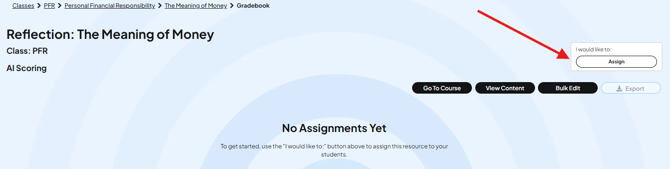
- Click Assign in the upper right corner.
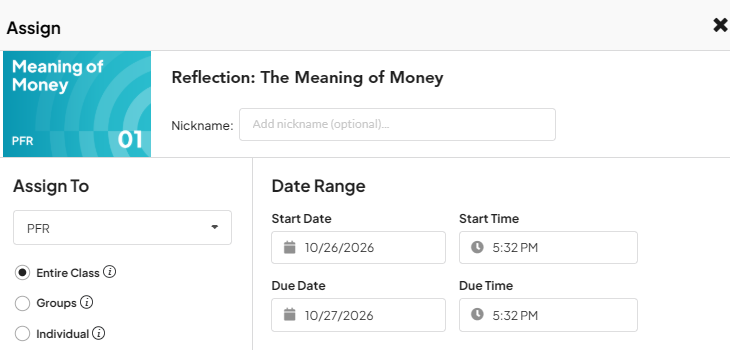
- A pop-up opens. Set the start date. If you assign well in advance, choose a date in the future. If you do not change it, the start date is the time you clicked Assign.
- Set the due date and the due time.
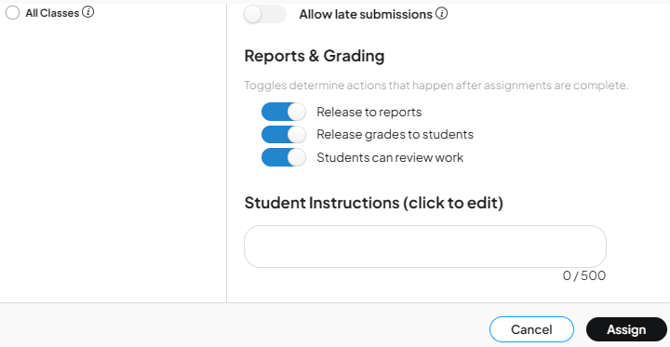
- Choose whether to allow late submissions. If you allow them, students keep working after the due date. Late work is marked in red in the gradebook.
- Choose your reports and grading options:
- Release the reports automatically.
- Release the grades to students.
- Let students review their work.
- Click Assign. The assignment goes to the whole class.
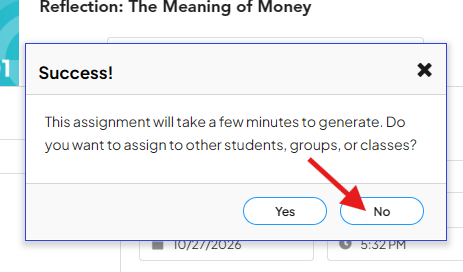
Click No on the success pop-up
After you click Assign, a second pop-up says the assignment was successful. It asks if you want to assign it to other classes, students, or groups.
Click No.
The only sure way to know a gradebook has nothing assigned is to open that gradebook and check it. If you click Yes and choose another class, that class might already have the assignment. This leads to duplicates. Only click Yes if you are completely sure the other gradebook is empty.
Wait for the gradebook to load
The gradebook reopens with a bar that says 1 assignment pending. It takes time for the assignment to be added for every student. When it finishes, the page refreshes on its own and shows everyone in the gradebook.
While it loads, do not try to assign the assignment again. Wait for the page to refresh. It is not instant.

- The assignment is set to teacher-assigned mode.
- The gradebook was empty before you assigned.
- You clicked No on the success pop-up.
Common questions
What happens if I do not assign the assignment?
Students see the assignment but cannot do any work on it. You have to assign every assignment in teacher-assigned mode.
Why do I need to check that the gradebook is empty first?
It is the sure way to avoid duplicates. If the assignment is already assigned and you assign it again, students get two copies.
Why does the gradebook show "1 assignment pending"?
The assignment is still being added for all of your students. Wait for the page to refresh and show everyone. Do not assign again while it loads.
What if I clicked Yes on the success pop-up by mistake?
Clicking Yes does not assign the assignment to another class. It only keeps the pop-up open so you assign it again. Click the X to close it. Then go to the assignment in the class where you want to add it, and check that its gradebook is empty.
If you clicked Yes, assigned it again, and now have duplicates, follow How to Remove Duplicate Assignments from Your Gradebook
What does it mean when I allow late submissions?
Students keep working after the due date. Late work shows in red in the gradebook.
How do I assign to one student instead of the whole class?
Follow How to Assign an Assignment to an Individual Student Summary