
Why switch to teacher-assigned mode
If you want your students on a set timeline, with due dates you control, teacher-assigned mode is the way to go. Here is how it compares to student-paced mode.
- Teacher-assigned: You set the start and due date for each assignment. Every student shows up in the gradebook right away, even before they start the work. This gives you a full view of your class at all times.
- Student-paced: Students move through the course at their own speed. A student only shows up in the gradebook once they click "start" on an assignment.
If your class has a set timeline and clear expectations for when work is due, teacher-assigned mode is a better fit.
Note: Pacing is set at the assignment level, not the course level. To move a course to teacher-assigned mode, you have to update each assignment one by one.
Before you start- This process is manual. There is no single setting that switches an entire course at once.
- Plan for a few extra minutes per module, depending on how many assignments it has.
- You can set three things for each assignment: pacing, visibility, and reports and grading.
- Go to your dashboard.
- Click the course link inside your class card.
This opens the course and shows your modules.
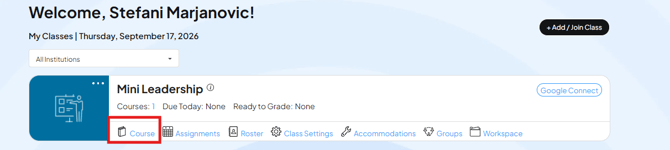
Step 2: Find student-paced assignments
Inside a module, look for assignments marked with a walking-person icon. This icon means the assignment is set to student-paced mode.
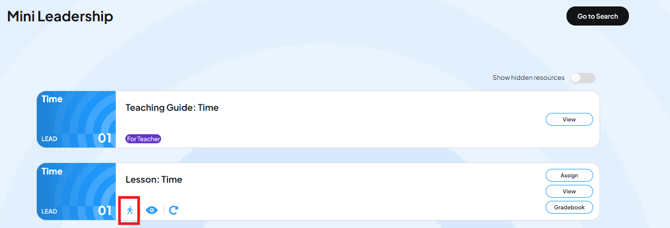
- Click on a walking-person icon.
- A pop-up opens with pacing options.
- Change the pacing to teacher-assigned.
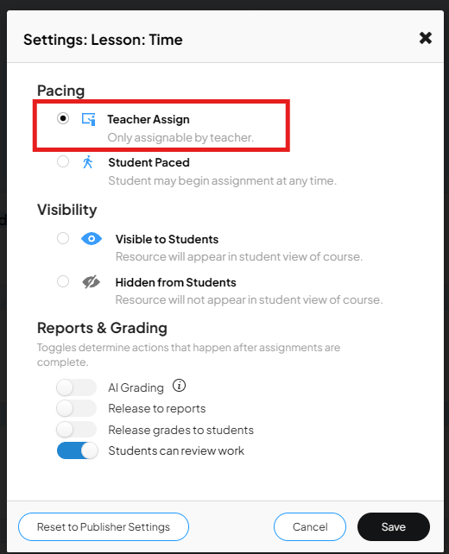
Step 4: Set visibility
Still in the same pop-up, choose whether students see the assignment right away.
- Visible: Students see the assignment as soon as you save it.
- Hidden: Students do not see the assignment until you release it. Use this if you want students to see only what is coming up, not the full course at once.
Hide assignments if you want to release your course on a weekly basis or on your own schedule.
Step 5: Set reports and grading
Choose how the assignment shows up in reports and grades.
- If you or the platform will grade the work, set up reports and grading now. This keeps everything ready to release once grading is done.
- If the assignment carries zero points, it will show as zero in reports. This is expected behavior, not an error.
Step 6: Save
Click Save. Then move to the next assignment and repeat Steps 3 through 6.
Step 7: Assign the assignment
Changing the pacing mode does not assign the work to students. You have to assign it separately.
You can do this at the same time you change the pacing or later.
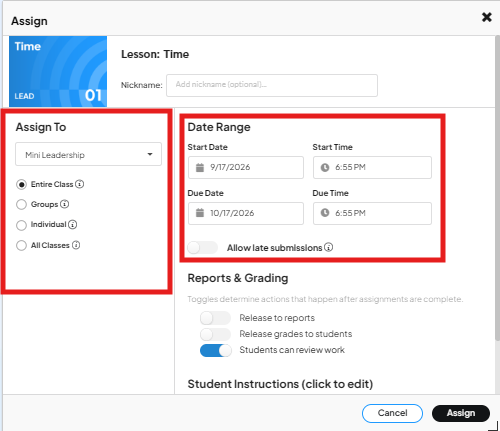
- On the right side of the assignment view, click Assign.
- In the pop up choose the date range: start date and due date.
- Choose who gets the assignment: your entire class, an individual student, or all of your classes.
- Confirm reports and grading settings.
- Add instructions for students if you want.
- Click Assign.
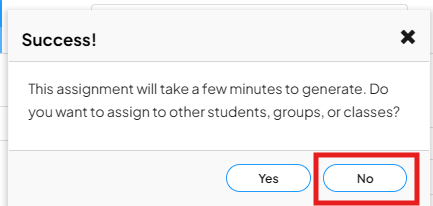
A pop-up confirms the assignment was successful and asks if you want to assign it anywhere else.
Click No. Assigning the same work in more than one place can cause it to be assigned twice. Go to the next assignment instead.
Common questions
Do I have to change every assignment or just some? Only change the assignments you want in teacher-assigned mode. Assignments you skip stay in student-paced mode and will not appear in students assigned tab.
What happens if I forget to assign an assignment after changing its pacing? The pacing mode and the assignment step are separate. If you change pacing but do not assign it, students will not see or receive the work.
Why does an assignment show as zero in my reports? Assignments worth zero points always show as zero in reports. This is normal and does not mean something is wrong.
Can I hide an assignment and release it later? Yes. Set visibility to hidden, then change it to visible when you are ready for students to see it.
Can I switch an assignment back to student-paced after changing it to teacher-assigned? We do not recommend this. Switching back and forth can cause students to end up with more than one copy of the assignment. Choose one pacing mode for your course and stick with it.
What if I choose "yes" to assign the assignment elsewhere by mistake? Check the gradebook for a duplicate assignment and remove the extra one if you find it.