
Unsubmit an assignment
- Go to the gradebook for the assignment.
- Find the student's row.
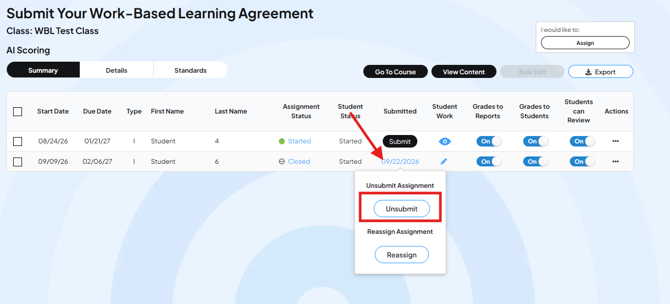
- In the Submitted column, hover over the submission date.
- Two options appear: Unsubmit and Reassign.
- Click Unsubmit.
The assignment unlocks with the student's existing work still in it. They can review it, make changes, and submit again.
Important: check the due date
If you unsubmit an assignment, check that the due date is still in the future. If the due date has already passed, the assignment will lock again right away.
If the due date has passed and you want to give the student more time, follow How to Extend Due Dates to change it after you unsubmit the assignment.
Common questions
Will unsubmitting erase the student's work?
No. The student keeps everything they already entered. Unsubmitting only unlocks the assignment.
Does the student get a new, blank copy?
No. The student works in the same copy. If you want a new, blank copy, reassign the assignment instead. Follow How to Reassign a Student's Assignment.
Which option should I use if a student submitted by mistake?
Unsubmit. It puts the student back into the same copy without losing their work.
Why does the assignment still show as locked after I unsubmitted it?
The due date has likely passed. Change the due date to a date in the future. Follow How to Extend Due Dates.