
When to reassign
Reassign when you want a student to start over on a clean copy of the assignment. The new copy shows in your gradebook next to the original.
If you want the student to keep their existing work and make changes, unsubmit the assignment instead. Follow How to Unsubmit a Student's Assignment.
Reassign an assignment
- Go to the gradebook for the assignment.
- Click Assign in the upper right corner.
- In the pop-up, choose Individual on the left side.
- Check the box next to the student you want to reassign the assignment to.
- Select the due date.
- Click Assign.
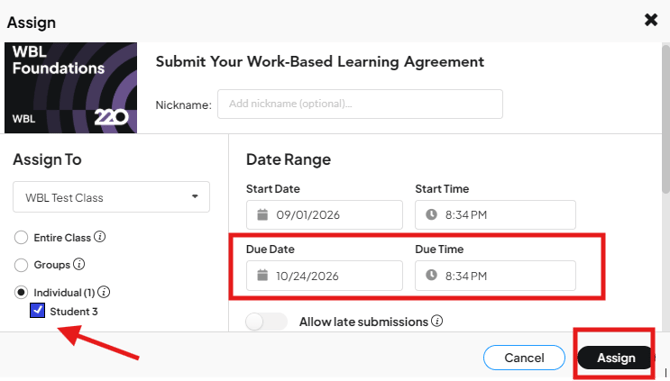
Note: The default is to assign to the entire class. Before you click Assign, make sure you chose Individual and checked only the student you want to reassign the assignment to.
The student gets a new, blank copy of the assignment. Their original submission stays in the gradebook.
Common questions
Does reassigning replace the student's original submission?
No. The original submission stays in the gradebook. Reassigning adds a new, separate copy for the student to complete.
What if I want the student to keep their existing work?
Unsubmit the assignment instead. The student keeps what they already entered, and the assignment unlocks so they make changes and submit again. Follow How to Unsubmit a Student's Assignment.
What happens if I forget to choose Individual?
The default is to assign to the entire class, so the assignment goes to everyone. Check your settings before you click Assign.
Where do I see the new copy?
In the gradebook for the assignment, next to the student's original submission.