
Use this article if you self-registered and your class area is empty.
If your school set you up through an integration, your classes appear automatically and you do not need this step.
Steps to follow
1. Log in to your teacher account
2. Open your dashboard or Classes area (this is where you land after login)
3. Select "Add / Join Class"
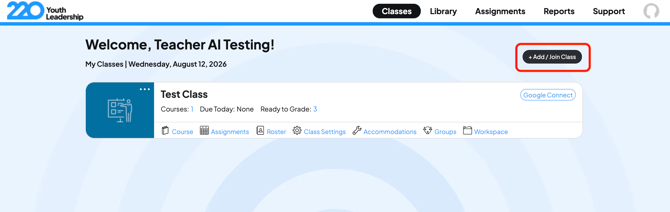
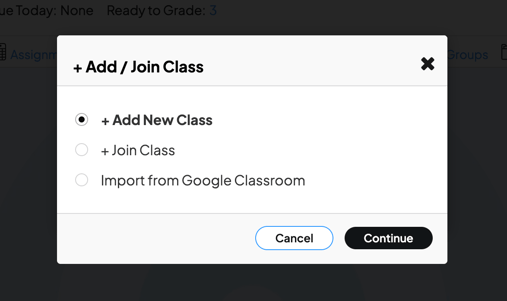
4. Click "+Add New Class", then Continue.
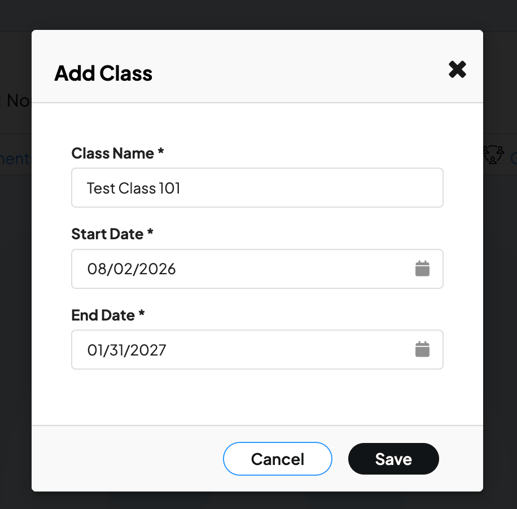
5.Enter your Class Name, Start Date and End Date and click "Save".
Next, add your 220 course to the class by clicking on the "Course" link on your new class, or by going to the Library tab in the top navigation bar.
Then share the student access code.
Caution: do not create extra or duplicate classes. Extra classes can cause roster confusion and student access issues.
Still stuck? Email support@220leadership.com.