
Two types of reports
- Course Report: Shows performance across a course, module, or assignment.
- Standard Report: Measures performance against state standards. Currently available for semester courses only. Support for other course types is in progress.
Who can see what
- Teacher: Sees your own classes.
- School admin: Sees a summary for your school.
- District admin: Sees a summary for all schools in your district.
Admins and teachers can drill down to an individual student's data. You cannot see a level above your own. For example, a school admin cannot see district-level reports.
What you will see in a report
This applies at every level: teacher, school admin, and district admin.
- Timestamp: Reports are generated on a 24-hour basis. The date and time the report was made shows at the top of the report.
- Performance: By assignment, module or course.
- Usage in minutes: How much time students spent on the course.
- Progress: Expand a course on the left side down to the assignment level to see each student's progress from top to bottom.
- Dashes: A dash means the work has not been graded, has not been completed or has not been sent to reports.
Once you click Details to drill down, you can switch between Performance and Usage views.
Read a report as a teacher
- Click the Reports tab on your profile.
- Choose the class you want to view in Course Report or Standard Report
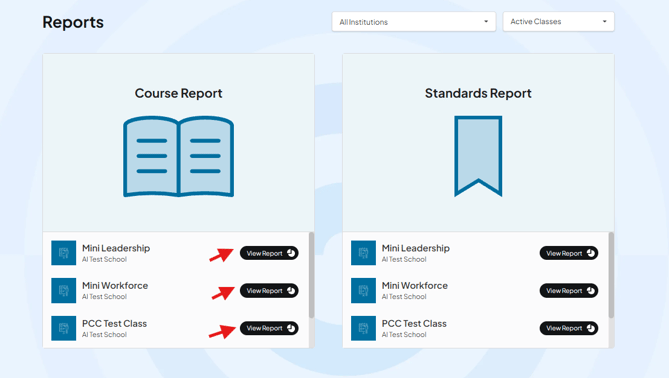
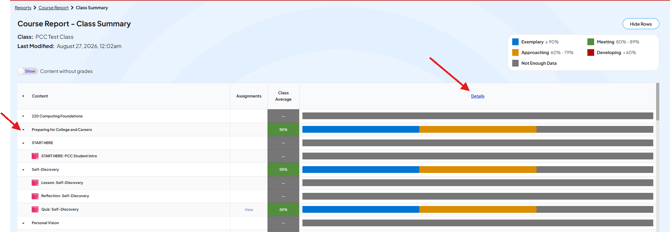
- You will see the courses used in that class. Use the drop-down arrow to drill down into modules and assignments.
- Click Details on the right side to see every student in the class, with their performance by assignment and module.
- You will also see the class average.
At the assignment level, you can click View next to a student's result to go directly to the gradebook for that assignment.
Read a report as a school admin
- Your school summary loads automatically.
- In the reports, choose the course you want to see. Reports let you look at student data across the different courses they take, so you select the course first.
- Click Details to see your school.
- Click the school name to drill down to the class level, then the course level if needed.

Read a report as a district admin
The process is the same as the school admin view, one level up. Your summary shows all schools in your district. Click into a school to drill down to classes and courses, the same way a school admin would.
Common questions
What is the difference between a Course Report and a Standard Report? A Course Report shows performance in a course. A Standard Report measures performance against state standards and is currently available for semester courses only.
Can a school admin see district-level reports? No. You can only see your own level and drill down, not up. A school admin cannot see district reports, and a teacher cannot see school-level reports.
What does a dash mean in a report? It means the assignment has not been graded, has not been completed, or has not been sent to reports yet.
How do I get to the gradebook from a report? At the assignment level, click View next to a student's result.
How often do reports update? Reports are generated on a 24-hour basis. You can see the date and time the report was made at the top of the report.