
When a student enrolls in a course, all of their assignments are already assigned by default.
Because our modules are assigned automatically, you do not need to manually assign them out. Students are able to start them anytime by default, just by clicking the "Start" button.
Even if you see an empty gradebook, the assignment is still "Assigned". Students won't be populated in your gradebook until the first student clicks "Start" on that assignment.
An empty assignment gradebook early in the week or class is normal.
Why duplicates happen
Duplicate assignments show up for 1 of 2 reasons:
- The teacher manually assigned out an assignment. By default, it was assigned when the class was enrolled- so that will create a duplicate assignment.
- The number of attempts is greater than 1.
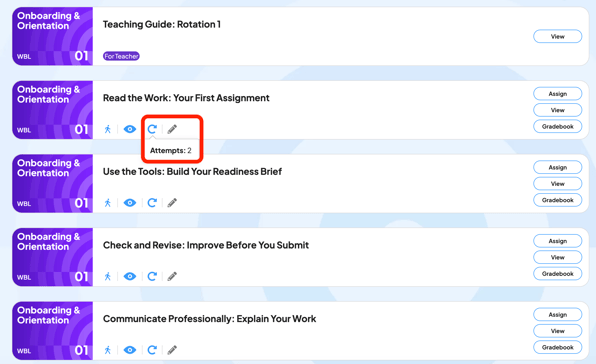
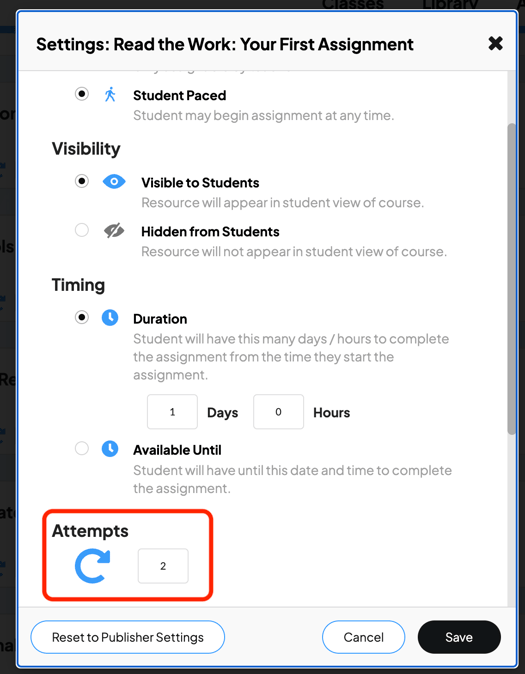
#1 and #2 above give students the ability to click "Start" instead of only "Continue", which enables the "duplicate" assignment/attempt.
As of mid-August 2026, we are updating lessons and reflection-style assessments to have only 1 attempt by default.
Quizzes still allow more than one to give students the opportunity to improve their score.
If you do see duplicates
You can leave them, as it should not affect their grade, or you can delete them from the gradebook.
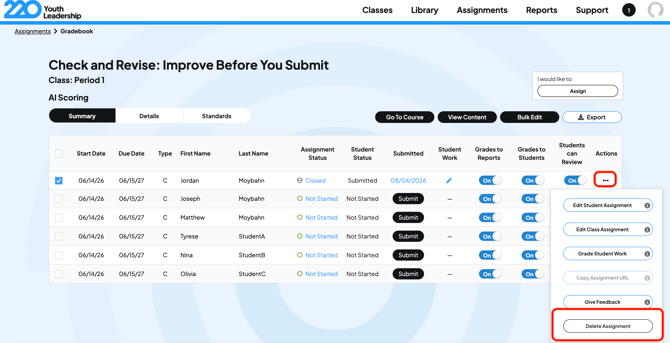
Give a student another try
- Open the gradebook
- Choose Unsubmit to let the student keep working on an item that closed
- Or reassign the item to have the student start over from scratch
Quick summary:
- Modules are already assigned, do not reassign them
- The gradebook fills as students click Start
- To give another try, unsubmit or reassign