
Why this happens
Duplicate assignments usually show up in one of two ways:
- The same assignment gets assigned to a student more than once by accident.
- Your course is still in student-paced mode, but you assigned the same assignment to the whole class. Students who already started the assignment on their own, through student-paced mode, now have a second copy from the class assignment.
Delete a single assignment
Use this method if one student has one duplicate assignment.
- Go to your gradebook.
- Find the row with the student's name and the duplicate assignment.
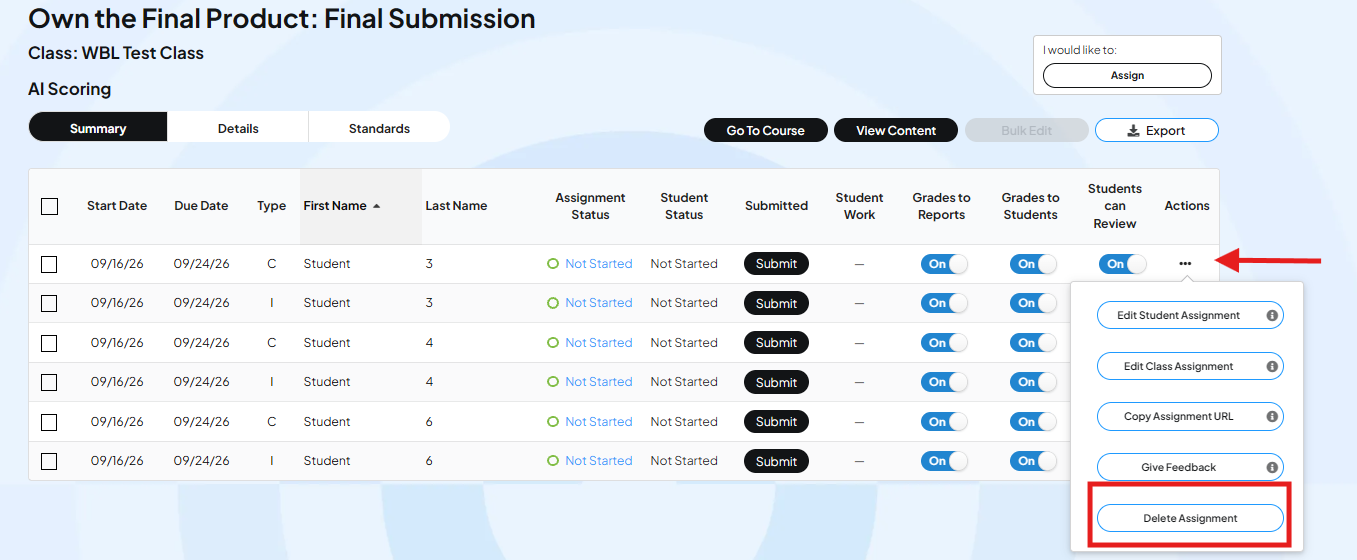
- At the end of the row, click the three dots.
- Click Delete Assignment. This is the last option in the menu.
Delete assignments in bulk
Use this method if your gradebook has several duplicate assignments across students.
- Go to your gradebook.
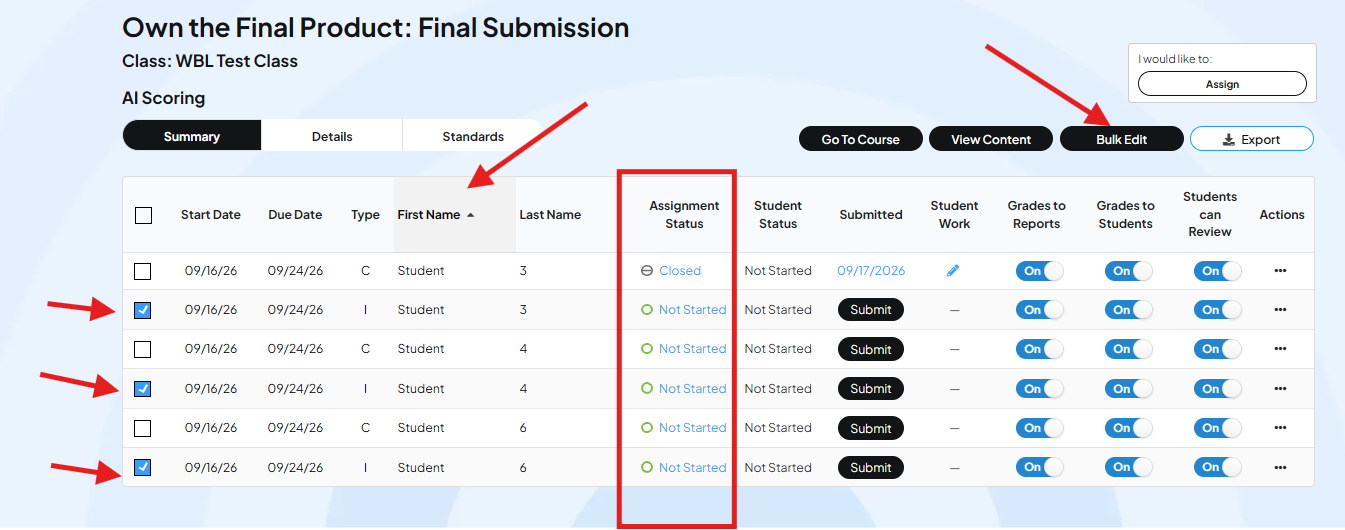
- Click First Name at the top of the table. This sorts the gradebook by student first name and makes duplicate assignments easier to spot next to each other.
- Scroll down and wait for the full table to load. Gradebooks with 50 to 100 or more assignments take longer to load. Wait until everyone is loaded so you see the full picture before deleting anything.
- Check the box next to each assignment you want to delete.
- Click Bulk Edit at the top of the table.
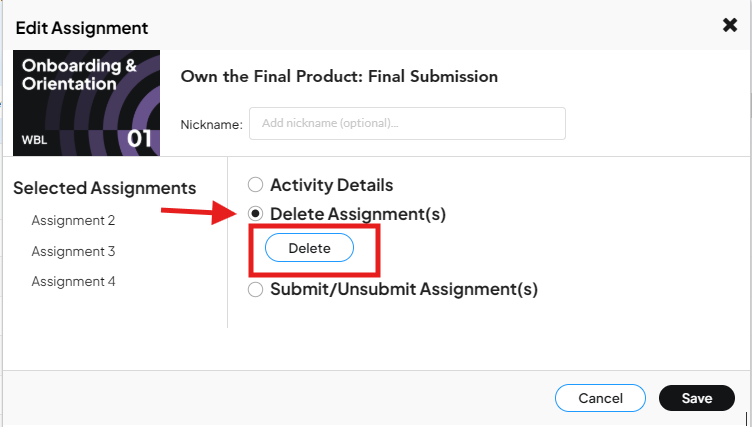
- In the pop-up, scroll down and check Delete Assignment.
- Click Delete.
Which assignments are safest to delete
When you have duplicates and need to choose which one to keep, use this order:
- Not started: Safest to delete. No work has gone into these.
- Started, not submitted: Safer to delete than a submitted assignment, but may have some work in it. Check before deleting.
- Submitted: Avoid deleting these. The exception: if you have two submitted duplicates that are already graded, delete the one with the grade you do not want the student to have.
Once you delete an assignment, it is gone. There is no way to recover it. Check your selections before you confirm the delete.
Common questions:
Do I need to use bulk delete for a single duplicate? No. Use the single-assignment method for one duplicate. Use bulk delete when you have several duplicates to clean up at once.
Why is my gradebook slow to load when I have a lot of duplicates? The gradebook is built to handle 50 to 100 assignments easily. More than that will load more slowly. Wait for the full table to load before you start deleting.
Should I delete a submitted assignment? Avoid it unless you have two graded duplicates and want to remove the one with the grade you do not want the student to have.